Record both sides of an AirPods call.
HiDock P1 gives a supported earphone call a physical record button. BlueCatch captures what you hear and what you say; HiDock App then transcribes the recording on your Mac.
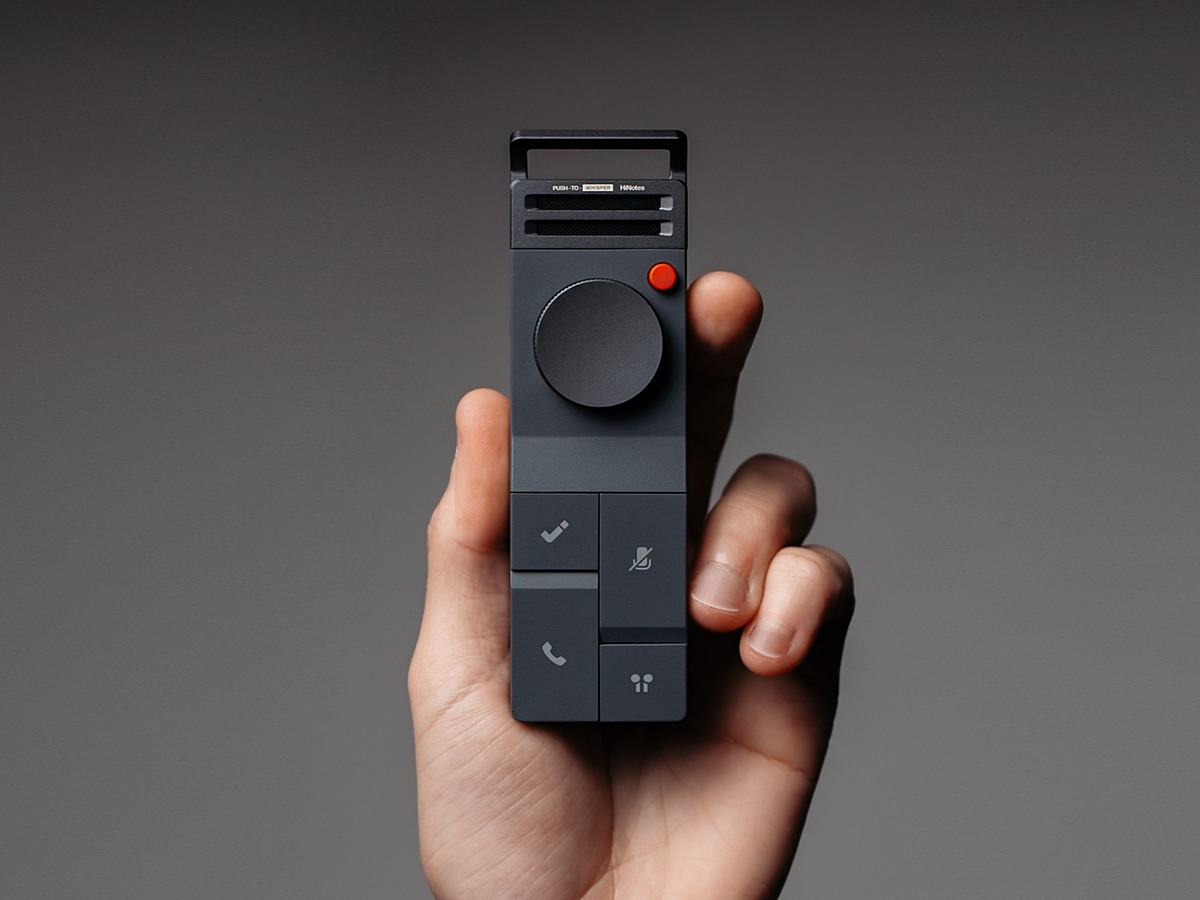
No meeting bot. No screen-recording puzzle.
Call recording is difficult when the conversation lives inside earphones. The useful part of the HiDock workflow is the capture path itself.
Connect the call through the supported HiDock path.
Use your AirPods with the laptop while HiDock P1 and BlueCatch handle the call audio path.
Press the physical record control.
Start only when everyone who needs to know has been informed and consent requirements are satisfied.
Capture both sides of the conversation.
BlueCatch records the remote side you hear and the voice you contribute, producing one complete call recording.
Transfer to HiDock App.
The recording moves to the Mac, where local speech processing creates the transcript.
Review, correct, and keep the note.
Read the transcript with its source audio, correct speaker labels, and treat the generated summary as a draft.
One recorder for calls and the room.
For a laptop call, P1 is useful because it can capture a conversation that would otherwise be split between an earphone output and a microphone input. For an in-person meeting, the same portable recorder can capture the room without keeping the laptop open.
The value is continuity. Both kinds of conversation arrive in the same HiDock App workflow, so the result can become a transcript and meeting note without changing tools.
| Designed for | Supported AirPods calls on a laptop and face-to-face recording with HiDock P1. |
|---|---|
| Capture result | One recording containing both sides of the supported call. |
| Processing | Local transcription in HiDock App on an Apple-silicon Mac. |
| Not required | A calendar meeting bot joining as a visible participant. |
| User responsibility | Participant notice, consent, and compliance with applicable recording laws. |
Before you press record.
Does HiDock P1 record the other person as well as me?
BlueCatch is designed to record both ends of a supported earphone call: the audio you hear and the voice you contribute.
Does this work for face-to-face meetings?
Yes. The published P1 workflow also covers in-person recording, so one device can handle a laptop call and a conversation in the room.
Where is the call transcribed?
After transfer, HiDock App transcribes the recording on a supported Apple-silicon Mac. Raw audio is not uploaded for the local transcription path.
Can I record without telling the other person?
Do not assume that. Recording and consent laws differ by location and context. Inform participants and follow the rules that apply to the call.
Capture the call. Keep the source.
Turn supported HiDock recordings into local meeting notes.